
 Русский
  Polski
  Türkçe
  Español
  Deutsch
  Français
Most professional Counter-Strike 2 players use the mouse wheel for jumping instead of the spacebar. Why? It is all about timing: when you scroll the wheel, you send dozens of jump requests per second to the game. This allows you to perfectly hit the moment of contact with the ground to perform a Bunnyhop (Bhop). In this guide, we will break down how to quickly set up the jump-to-wheel bind in CS2 via the console and settings.
How to bind jump to the wheel via settings
If you do not like working with the console, Valve has provided a simple way to change keys in the interface.
- Go to "Settings" -> "Keyboard and Mouse".
- Find the "Movement" -> "Jump" section.
- Click on the current key and scroll the mouse wheel up or down. Tip: We recommend keeping jump bound to both the
Spacebarand the wheel. TheSpacebaris convenient forJumpthrowgrenades (if you do not use a bind), while the wheel is best for movement.
Console commands for jump to wheel
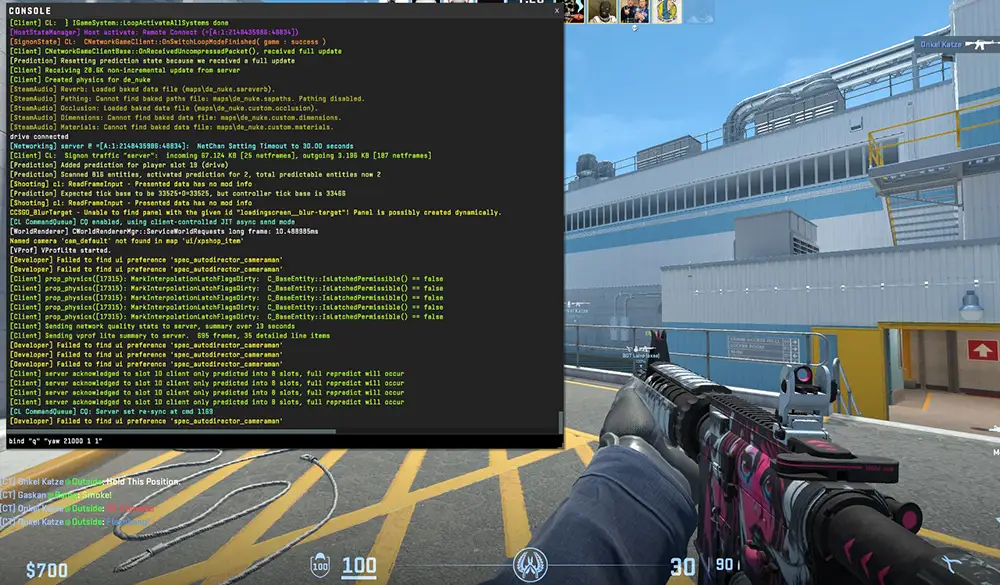
Using the console (~) allows you to set everything up much faster and more accurately. Copy the necessary commands:
bind "mwheelup" "+jump": Jump when scrolling up.bind "mwheeldown" "+jump": Jump when scrolling down.bind "mwheelup" "+jump"; bind "mwheeldown" "+jump": Jump on both scroll directions at once. To remove the jump from the wheel if it interferes, use the command:unbind "mwheelup"orunbind "mwheeldown".
Why do you need the jump to wheel in CS2?
The main reason is Bunnyhop. In CS2, the sub-tick system has made bunnyhopping slightly more demanding regarding timing.
- Movement smoothness: When you jump with the wheel, it is easier to maintain momentum after landing.
- Overcoming obstacles: Jumping onto crates (for example, the "fire box" on Mirage) is much easier when you scroll the wheel instead of spamming the
Spacebar. - Evasion: In situations where you are under fire, unpredictable jumps through bunnyhopping can save your life.
How to save binds forever?
Sometimes settings reset after restarting the game. To prevent this, add the commands to your autoexec.cfg.
- Go to the folder:
\Steam\steamapps\common\Counter-Strike Global Offensive\game\csgo\cfg. - Create or open the
autoexec.cfgfile. - Insert:
bind "mwheeldown" "+jump",bind "mwheelup" "+jump". - Save the file.