
 Русский
  Polski
  Türkçe
  Español
  Deutsch
  Français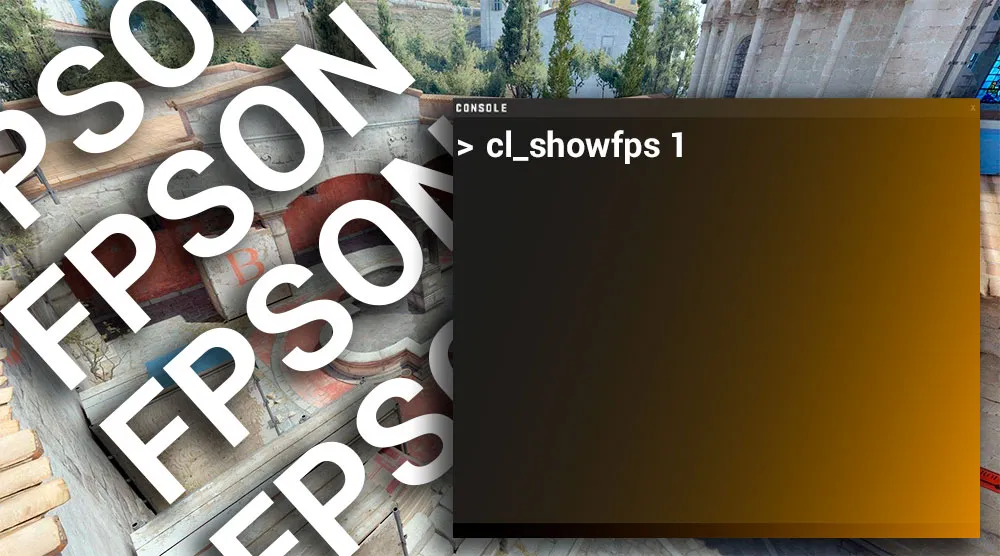
Monitoring frames per second (FPS) is a critically important aspect of comfortable gaming. In Counter-Strike 2, the developers have changed the familiar commands, which is why many players wonder how to enable FPS in CS2 if the old methods no longer work.
In this guide, we will break down the three simplest and most effective ways to enable the FPS counter in CS.
How to enable FPS in CS2 via console
This is the most popular method among players. Unlike CS:GO, which used the net_graph command, the new version uses the telemetry system for this purpose.
Instructions on how to enable FPS in the CS console:
- Open the console (~). If it does not open, enable it in the game settings.
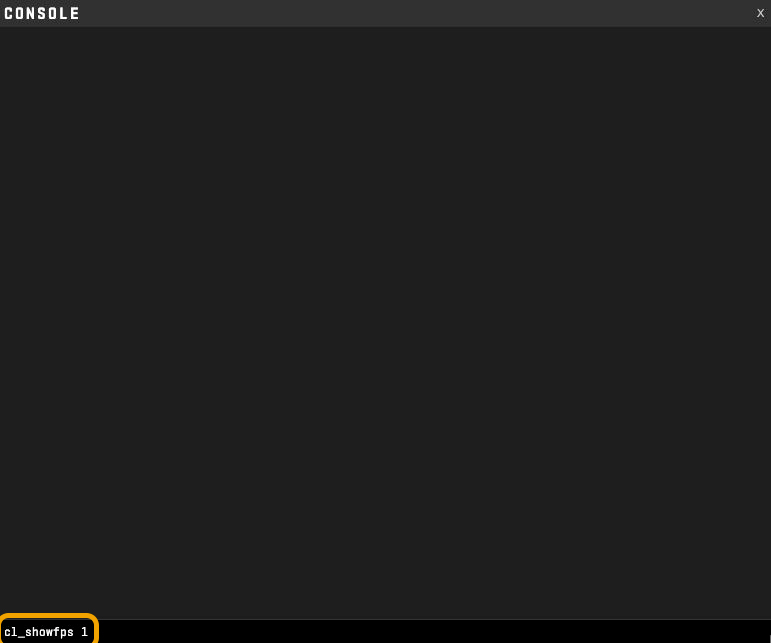
- Enter the command:
cl_showfps 1. - If you want to see expanded information (ping, packet loss), use the new telemetry system:
cl_hud_telemetry_serverrecvmargin_graph_show 1.
To enable the FPS display in CS on a permanent basis, add these commands to your autoexec.cfg file.
Showing FPS via game settings (without console)
If you do not want to use the console, you can enable FPS in CS2 through the standard menu. Valve has added convenient toggles directly into the interface.
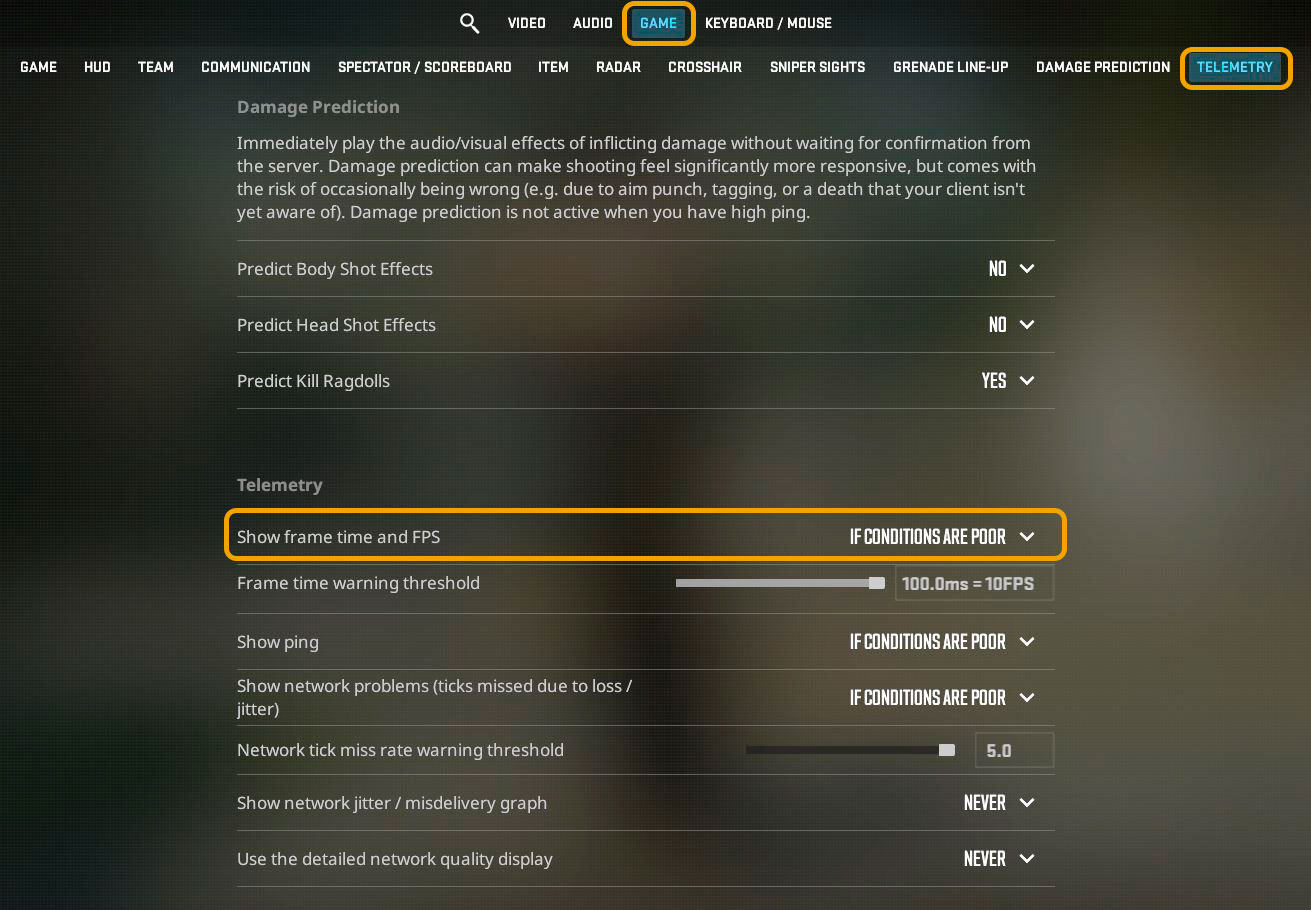
- Go to "Settings" -> "Game" -> "Telemetry".
- Find the item "Show frames per second".
- Set the value to "Always" or "When FPS is low".
Here you can also configure the FPS indicator in CS2 to display only when the frame rate drops below a comfortable level.
How to enable the FPS counter in CS via Steam
This method is good because the counter will work in all games, not just CS. It looks minimalistic and does not distract from gameplay.
- Open the Steam client.
- Go to "Settings" -> "In-Game".
- Find the item "In-game FPS counter".
- Choose a corner of the screen (e.g., "Top-left") and check the "High contrast color" box so the numbers are clearly visible.
This is the easiest way if you are looking for how to enable the FPS display in CS2 without digging into console commands.
Why is it important to see your FPS?
Besides simple curiosity, the FPS counter in CS helps:
- Identify frame drops during smokes or shooting.
- Understand if graphics settings are working correctly.
- Check system stability after driver updates.