
 Русский
  Polski
  Türkçe
  Español
  Deutsch
  Français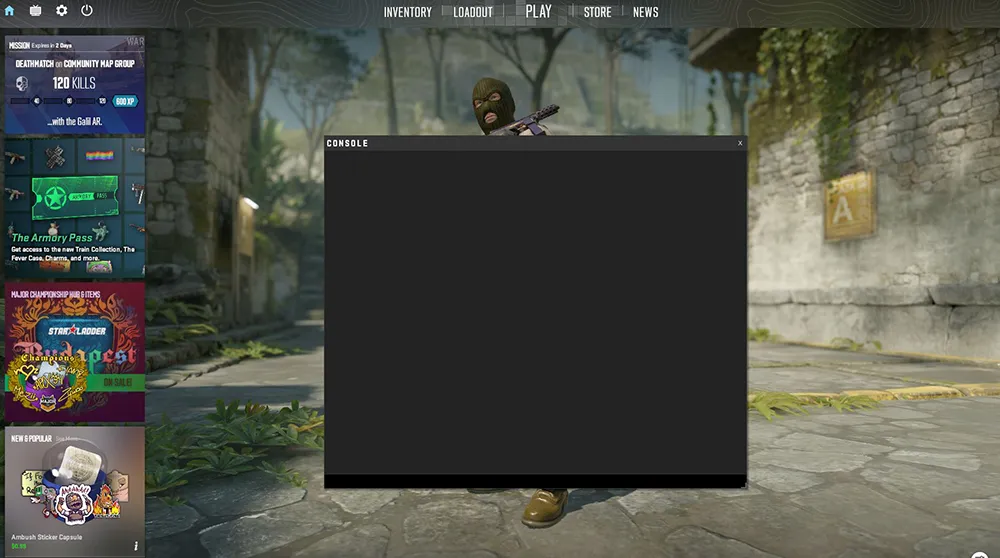
The developer console is the heart of Counter-Strike 2 customization. Through it, professionals change their crosshair, adjust hand positions (viewmodel), cap FPS, and manage servers. In this guide, we will break down all the ways to enable the console in CS2 and what to do if it refuses to open.
How to enable the developer console in CS2: The main method
The simplest way is through the game's built-in menu. This will take no more than 30 seconds.
- Launch CS2 and click on the gear icon (Settings) in the top left corner.
- Go to the "Game" tab.
- Find the item "Enable Developer Console (~)".
- Set the value to "Yes".
Now, when you press the tilde key (~), located below the Esc button, an input window for commands will appear.
How to enable the console via Steam launch options
If for some reason the in-game settings are not saving, you can force-activate the console through the Steam client.
- Open your Steam Library.
- Right-click on Counter-Strike 2 and select "Properties".
- In the "General" tab, find the "Launch Options" field.
- Enter the following command:
-console.
After this, the console will open automatically every time the game starts.
What to do if the console in CS2 won't open?
This is the most common issue for players in 2026. Here are 3 proven solutions:
1. Keyboard layout issue The console in CS2 is often sensitive to the input language. If you have a non-English layout active, the "~" key might not trigger.
- Solution: Switch to English (Alt+Shift or Win+Space) before pressing tilde.
2. Console is not bound Sometimes the activation key simply "unbinds" itself in the control settings.
- Solution: Go to "Settings" -> "Keyboard and Mouse" -> "UI Keys" -> "Toggle Console" and manually assign a key (e.g., ~ or any other key convenient for you).
3. The universal bind fix If the console behavior is unstable, enter this universal bind directly into the console (once it opens):
bind "~" "toggleconsole"