
 Русский
  Polski
  Türkçe
  Español
  Deutsch
  Français
The Source 2 sound system in 2026 is a powerful tool that, when configured correctly, allows you to literally "see with your ears." However, standard parameters often create a mess of gunfire and explosion sounds in which enemy footsteps get lost. In this article, we will break down how to set up your audio config for perfect positioning.
Positioning is your ability to determine the exact point where an enemy is located (behind a wall, a floor above, or around a corner) by ear.
Basic audio settings in the CS2 menu
The first step is to set the parameters in the game's main menu. This is the foundation upon which spatial perception is built.
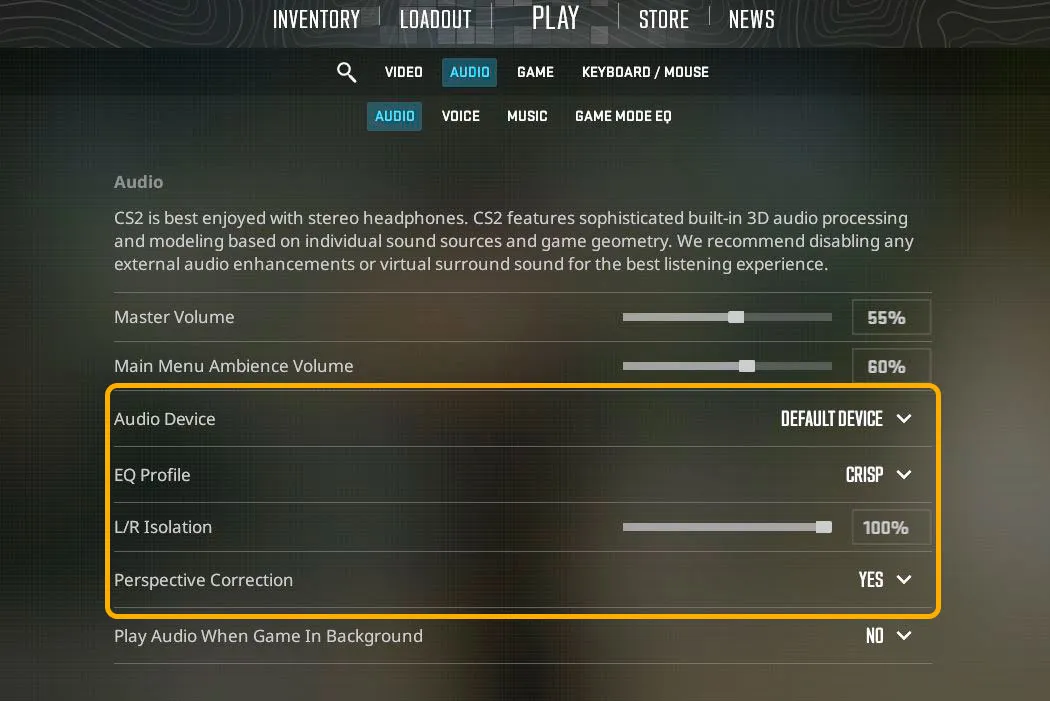
- Audio device type: Choose only "Stereo headphones." Any virtual 5.1 or 7.1 modes add latency and distort the direction of sound in CS2.
- EQ profile: "Crisp." This is a critical setting: It cuts low-frequency hum and emphasizes high frequencies (footsteps, pin pulling, reloading).
- L/R Isolation: 100%. At this value, the sound in the left and right ears is separated as clearly as possible. This allows you to unmistakably understand which side the enemy is running from.
- Perspective correction: "Yes." This setting synchronizes the sound field with your field of view.
Console commands for audio optimization
To ensure sound is instant and clear, enter the following commands into the console (~) or your autoexec.cfg:
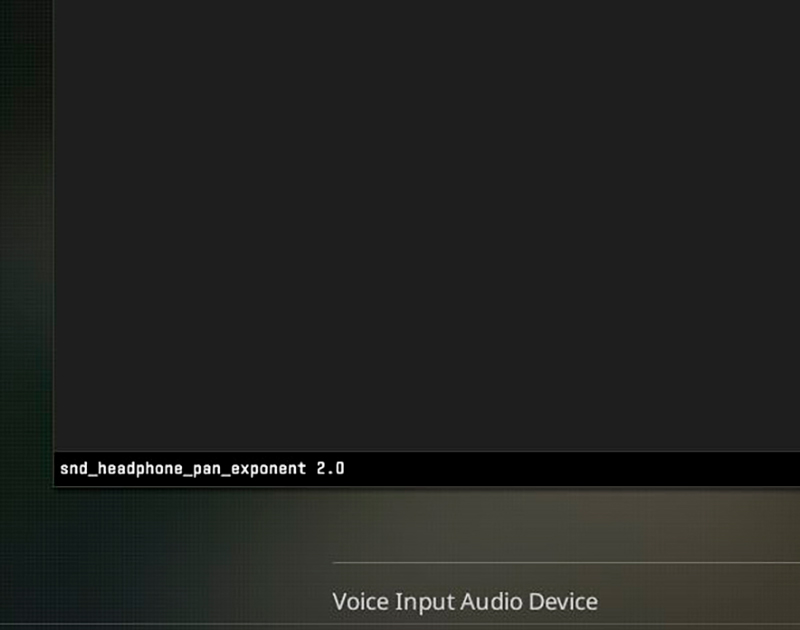
snd_mixahead 0.01- Minimal sound processing buffer. Removes micro-latency between the action on the screen and the sound in the headphones.volume 0.8- Master volume. It is recommended to keep it slightly below maximum to avoid sound distortion during massive explosions.snd_headphone_pan_exponent 2.0- Makes sound fading over distance more predictable, which helps in determining the distance to the target more accurately.
How to hear footsteps better in CS
To gain a maximum advantage, many players use additional settings. If you want quiet footsteps to become louder without harming your hearing, pay attention to the following points:
- Streamline push-to-talk: Enable this option in the audio settings to avoid lags and sound delays when using the microphone.
- Loudness equalization (Windows): A system setting that balances loud and quiet sounds.
[GUIDE: How to boost footsteps via equalizer and Windows (Article No. 5c)] (Link goes here)
Solving audio problems
If you encounter technical difficulties - the sound is too quiet, gone entirely, or the microphone isn't working - we have prepared separate step-by-step guides for each issue.